
Webflow InteractionsDesign Interactions Without Code - Webflow

Now you can design interactions and animations for your website without writing a line of code. Learn More or Start Designing.

simple & powerful tools
Flexible
Comes with a range of triggers and effects to create limitless UX possibilities.

Mobile
Animations that work beautifully on desktop and mobile devices.

Cross-browser
Works on all modern browsers and degrades gracefully on the old ones.
No Coding
No more wrangling Javascript code libraries to accomplish simple interactions.
HOW IT WORKS
1
Set Initial Appearance
Choose how your element will appear before the page loads. (Optional)

2
Choose a Trigger
Decide what kind of event or action has to take place to initiate an animation.

3
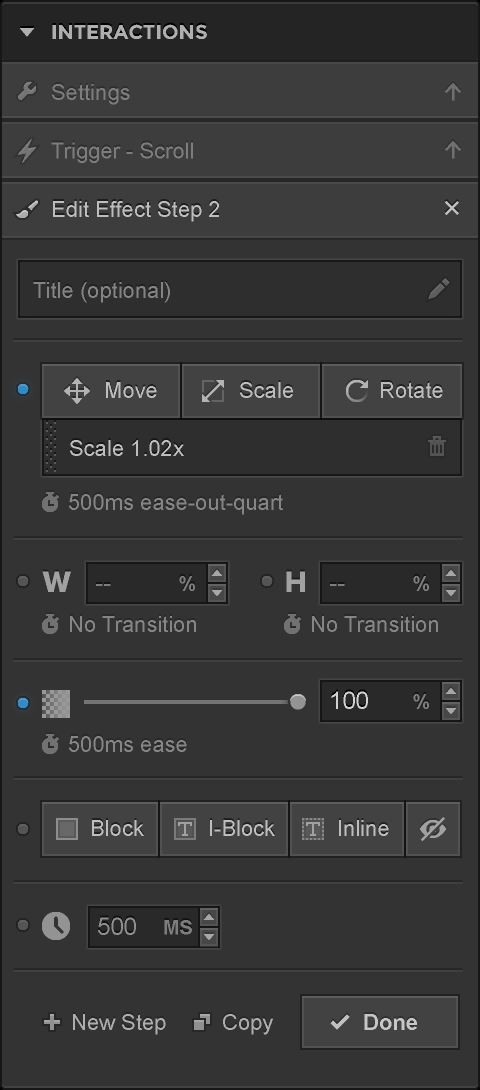
Animation Steps
Combine CSS styles and transitions for an animation when the trigger is initiated.
4
Apply Globally
Select any element, go to the element settings and apply the interaction.

example 1 scroll in & Out

Scroll trigger not supported on touch devices
Touch devices have limited resources to allow animations while scrolling.

This is a Cactus
According to Wikipedia, a cactus is a member of the plant family Cactaceae within the order Caryophyllales.
When a user scrolls down the page and this element comes into view, an animation is triggered. Then a different set of effects are triggered when the element is scrolled out of view.

example 2 scroll affecting a different element
Scroll trigger not supported on touch devices
Touch devices have limited resources to allow animations while scrolling.
See the monkey that appears at the bottom?
When an element is scrolled into view, an interaction can be applied to another element, or elements, by choosing a class. In this example the interaction is set on this section, so when it is scrolled into view the effects are applied to the Footer Flyout class . The initial appearance is set on the affected element via a different interaction, not on this section’s interaction.

example 3 Click to show & hide content
Here is some hidden text.
Here is some more hidden text! More and more of it. I love hidden text. It’s so awesome. I wish there was a tree with hidden text growing on it. I’m not exactly sure how that would be possible, but I can dream!
Clicking on an element can affect another element on the page. In this example a click interaction is set on the blue button. Once it is clicked the effects are applied on the Hidden Text class. A different set of effects can be applied to Hidden Text class when the button is clicked a second time (toggle). In this case the height of the element goes back to 0.

example 4 Click to show sidebar
The click trigger can affect any element on your site. Here is an example of a click trigger on a button that affects the Sidebar class, which is a fixed on the right side of the page. A different interaction is set on a button inside the sidebar. Clicking on this button will transition the Sidebar element. The sidebar element has its own interaction with just an initial appearance.

example 5 hover reveal interaction
Hover trigger not supported on touch devices
Touch devices don't have a concept of mouse hover.


Slave Ambient
The War on Drugs
Hovering over an element can trigger an interaction that can affect any element on the page. Also, more than one trigger can be added to the same interaction. In this example hovering over the Album Art element above will trigger an interaction that has 3 different hover triggers. Each hover trigger affects a different class. One trigger fades in the Action Icons, another fades in the pink Album Gradient, and another fades in the Album Info. Each has unique effects and transitions.

...and those are just some examples we thought of.
Let’s see what unique interactions you build inside of Webflow.
Available
triggers

Page Load
Interaction starts as soon as the page begins to load.

Scroll
Triggered when your element scrolls into view.

Click
Activates an interaction with a single or toggle click.

Hover
Mouse hover over an element. Degrades on touch devices.

Slide Load Coming Later
Initiates when new slide (from slider) comes into view.

Active Scroll Coming Later
Increments an effect as a user scrolls (like parallax).

Custom Trigger Coming Later
Specify any type of event as a trigger for your interactions.
available
effects

Transform
Move, rotate, and scale your element or selector.

Opacity
Make an element or selector more transparent or opaque.

Width & Height
Change the dimensions of the current or target element.

Display Property
Switch your element's display to block, inline-block or inline.

Duration
Add delays and alter durations of individual animation steps.

Transitions
Add unique transitions at any step of your interaction.

Loop
Make your animation steps repeat until the end of time.

Add/Remove Classes Coming Later
Change the whole look and feel with any trigger.
how-to Videos
Fade in nav by scrolling
3 Minutes
Staggered scroll interaction
3 Minutes
Staggered load animation
3 Minutes
Click trigger to show/hide object
3 Minutes
Basic hover interaction
2 Minutes
All Webflow Video Tutorials
Tutorials videos to help you with Webflow
